One library, wherever you read
ParkourNote runs in the browser, in Chrome's side panel and on the iPhone and iPad. Claude, ChatGPT and Codex can connect to it as well. They all use the same account, so a note taken on one shows up on the others.
Web app
The full workspace, in any current browser on any computer. Nothing to install.
- Sign in with an email and password (a six-digit code confirms a new address), or with Apple or Google.
- Workspaces, tags, reading positions and notes follow your account to every computer you sign in from. Tabs you have not saved as a Workspace stay on that computer.
- Notes sync live, so a note open in two places updates in both.
- The interface is available in English, Simplified and Traditional Chinese, Japanese, Korean, Spanish, French, German, Brazilian Portuguese, Russian and Indonesian.
Chrome extension
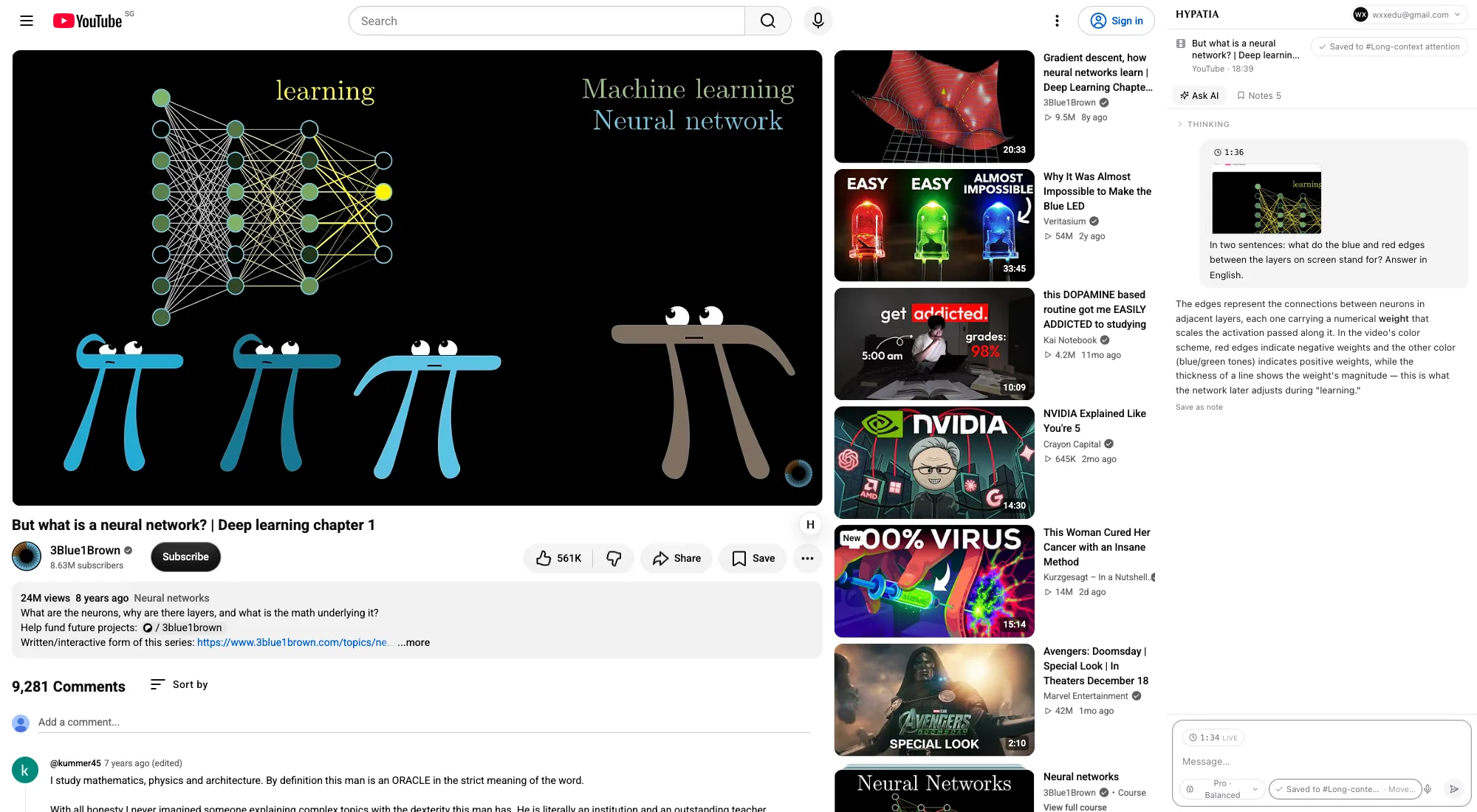
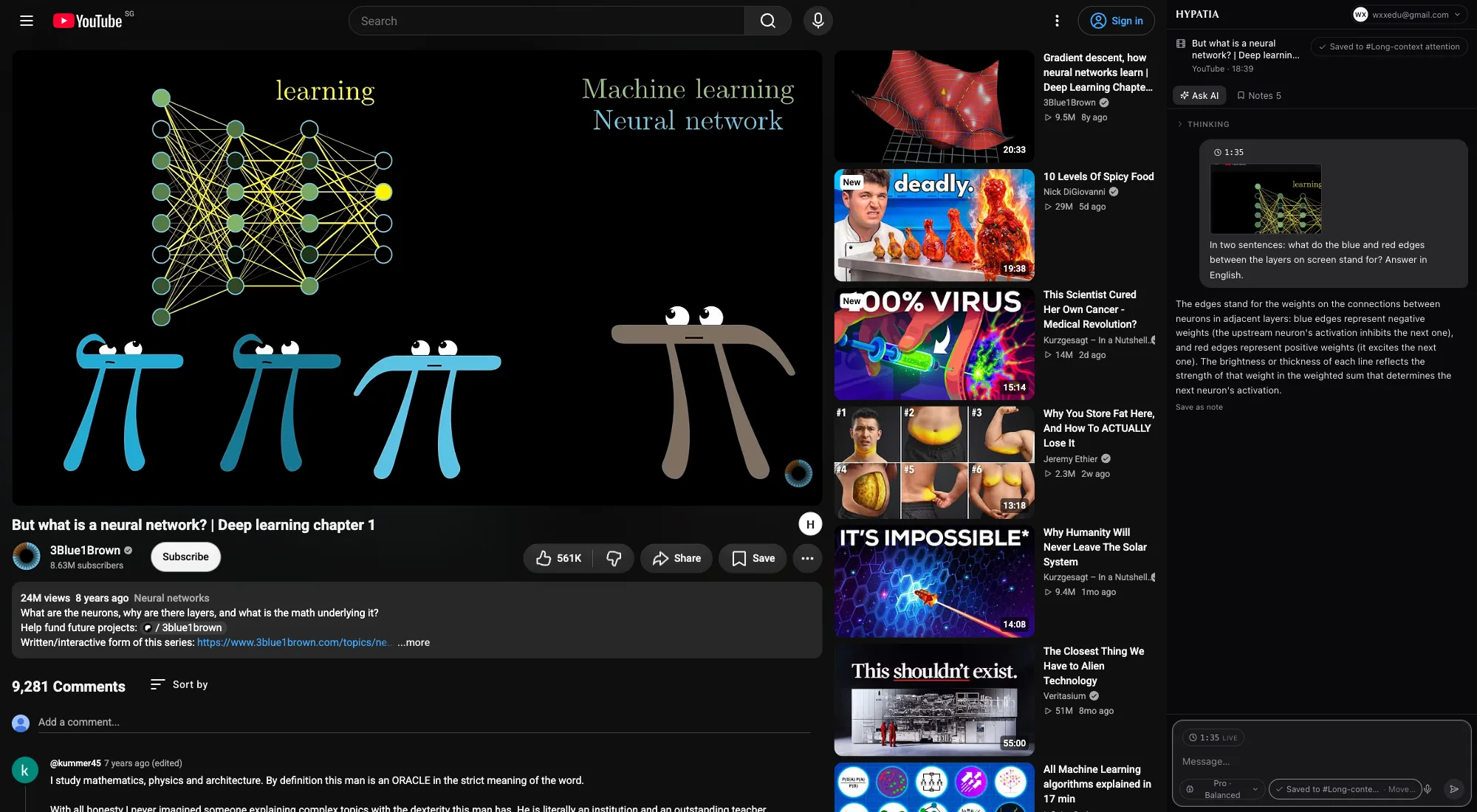
ParkourNote in Chrome's side panel: ask about any page, clip it, or import the paper it shows, without leaving the page.
What it does on each kind of page
| Page | What you can do |
|---|---|
| arXiv and publisher pages | Import the paper into your library with its metadata. Works from Chrome's PDF viewer too, and from local PDF files if you allow file access. |
| Any article | Clip it as a readable article, or as an article plus a full snapshot of the page. |
| YouTube and Bilibili | Take notes pinned to the current time, each with a frame from the player; ask about what's on screen. |
| Any page | Ask about the page or a selection from the side panel or the small ParkourNote pill. The first question saves the page to your library. |
Good to know
- Sign in once; the extension stays signed in on every site.
- The pill shows when a page is already in your library and suggests a tag for new ones. It can be hidden per site.
- Imports use the access you already have in your browser; paywalled content stays behind its paywall.
- The extension reads a page only when you use it there. It does not collect your browsing history.
iPhone and iPad
A native app, currently in testing and not yet in the App Store. It works on the same library as the web app.
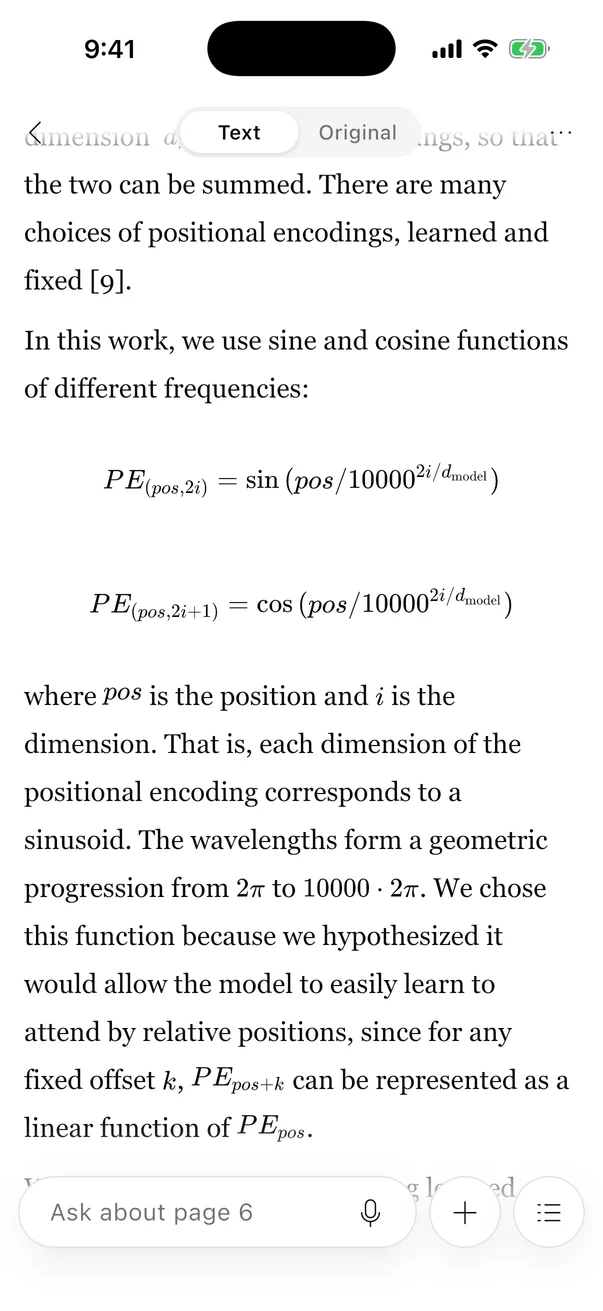
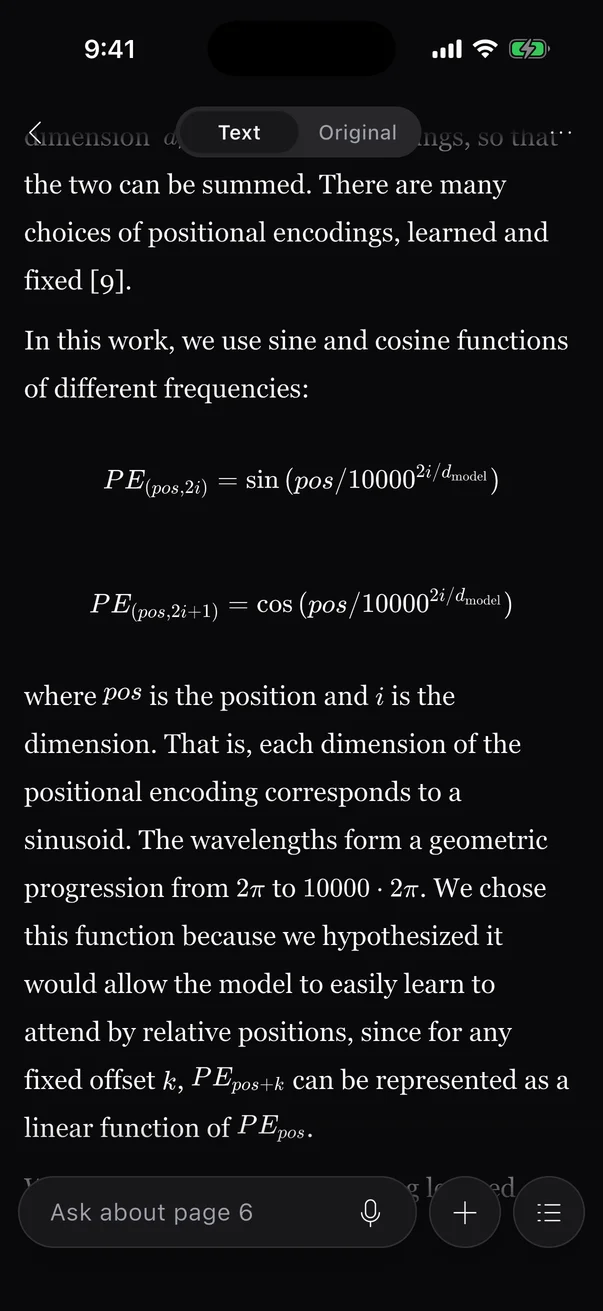
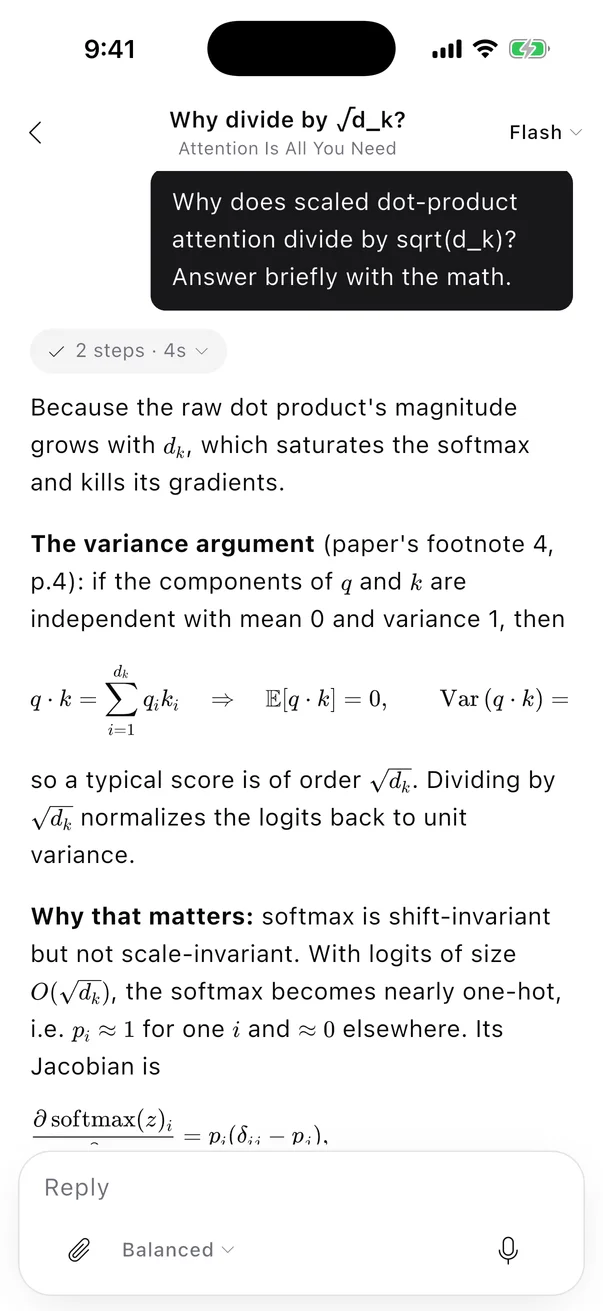
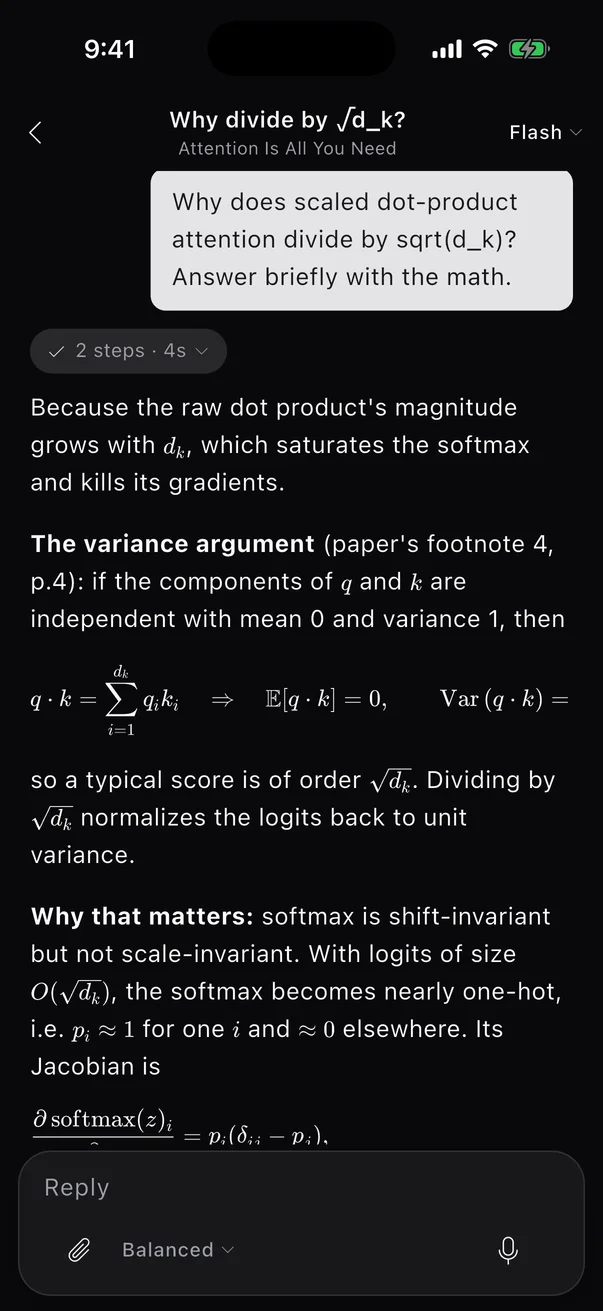
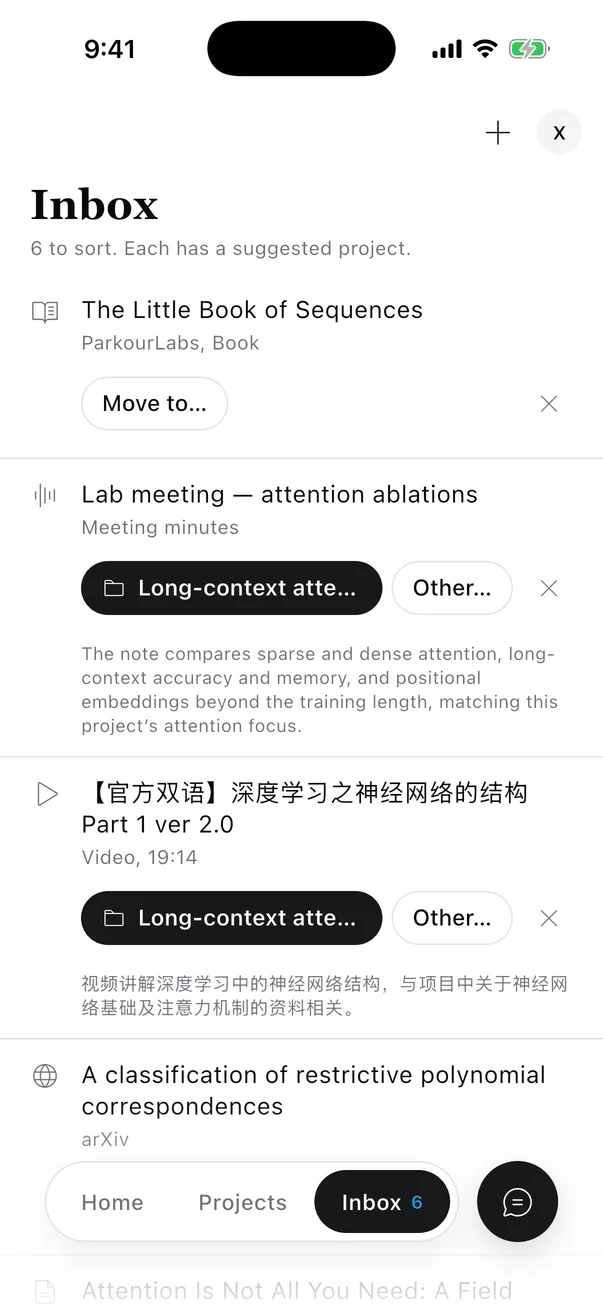
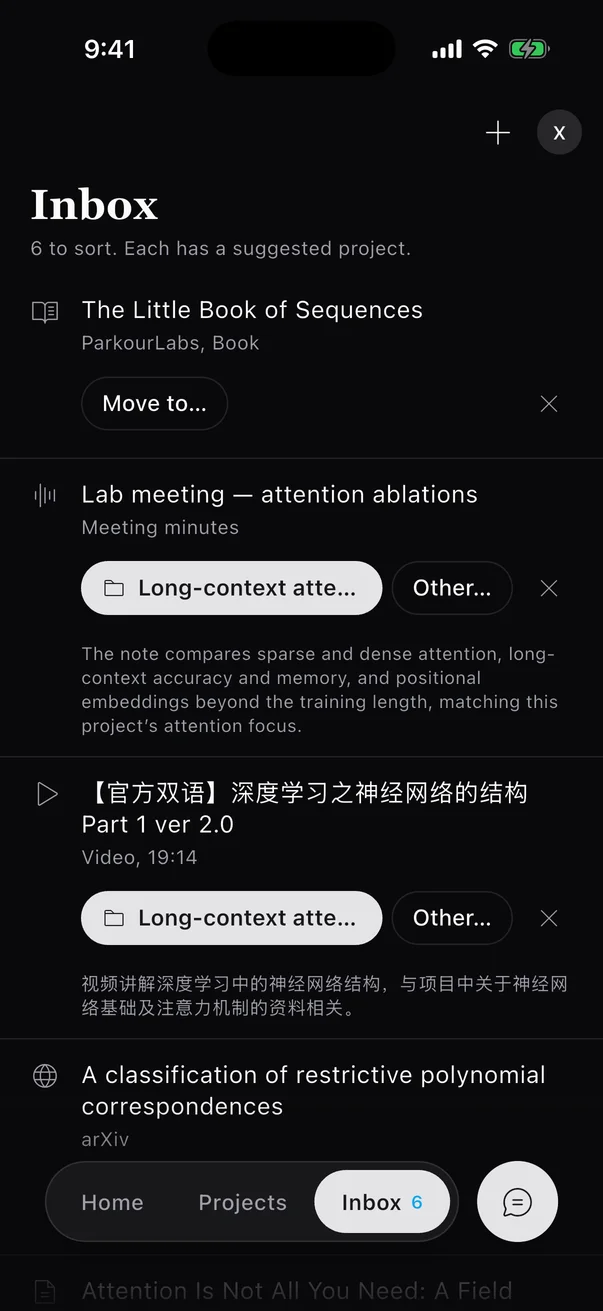
- Home shows what you were reading and what is waiting in the Inbox. Workspaces and the library are one tap away in the bottom bar.
- The reader shows the transcription with formulas rendered, and the original pages when you need them. The contents sheet also holds page thumbnails and citations; translation is in the ⋯ menu.
- Ask about the page from the bar at the bottom, by typing or dictating. The chat slides up over the reader and continues the conversation of the Workspace you are in; choose Flash or Pro and how long it should think.
- Notes open in a native editor that syncs live with the browser. Select text to ask about it, rewrite it or translate it, then keep or undo the change.
- Record meetings with the phone locked. A Live Activity on the Lock Screen lets you mark, pause and stop, and the Summary is written when you stop.
- Text you have opened stays readable offline; drafts wait until you're back online.
Connect Claude, ChatGPT or Codex
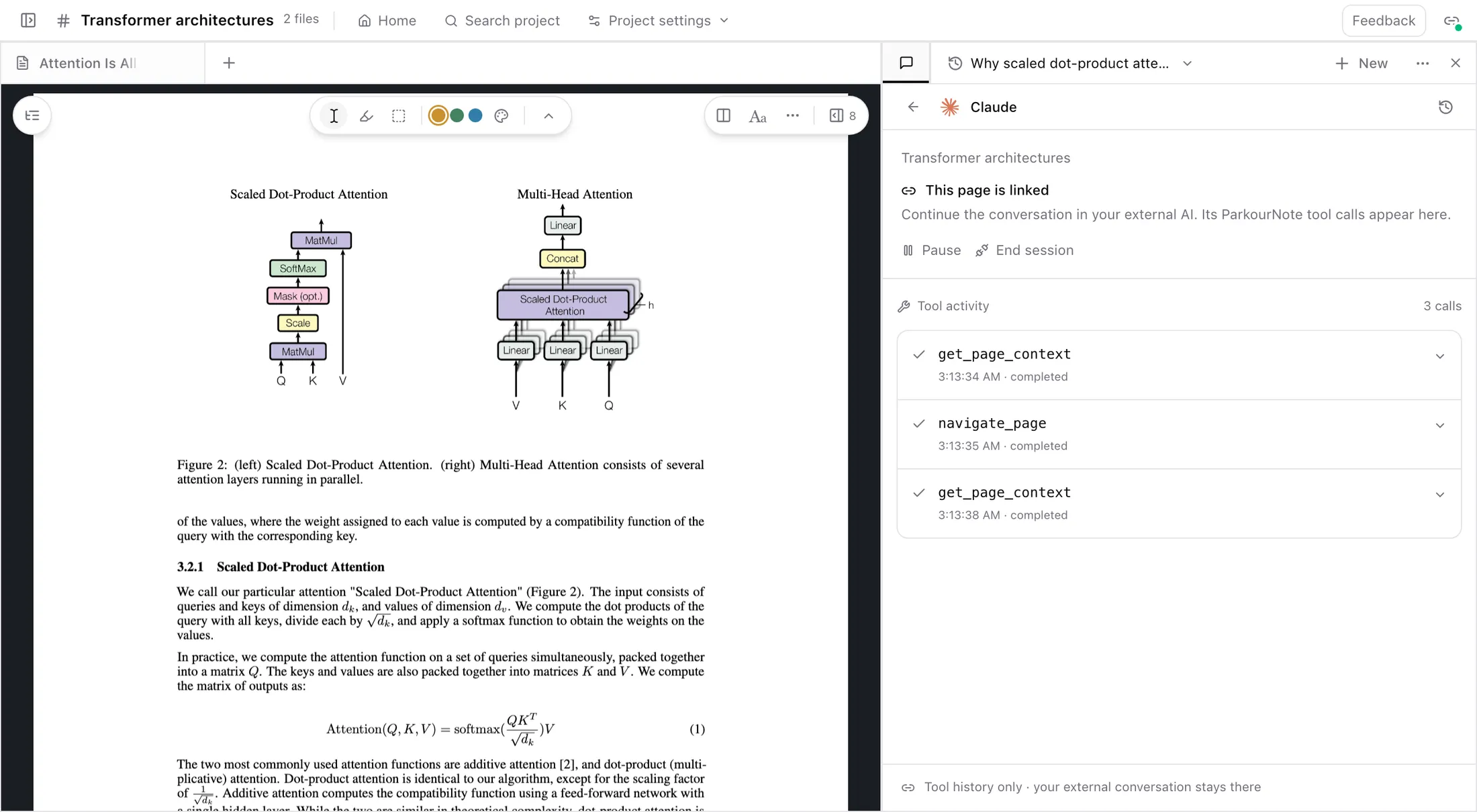
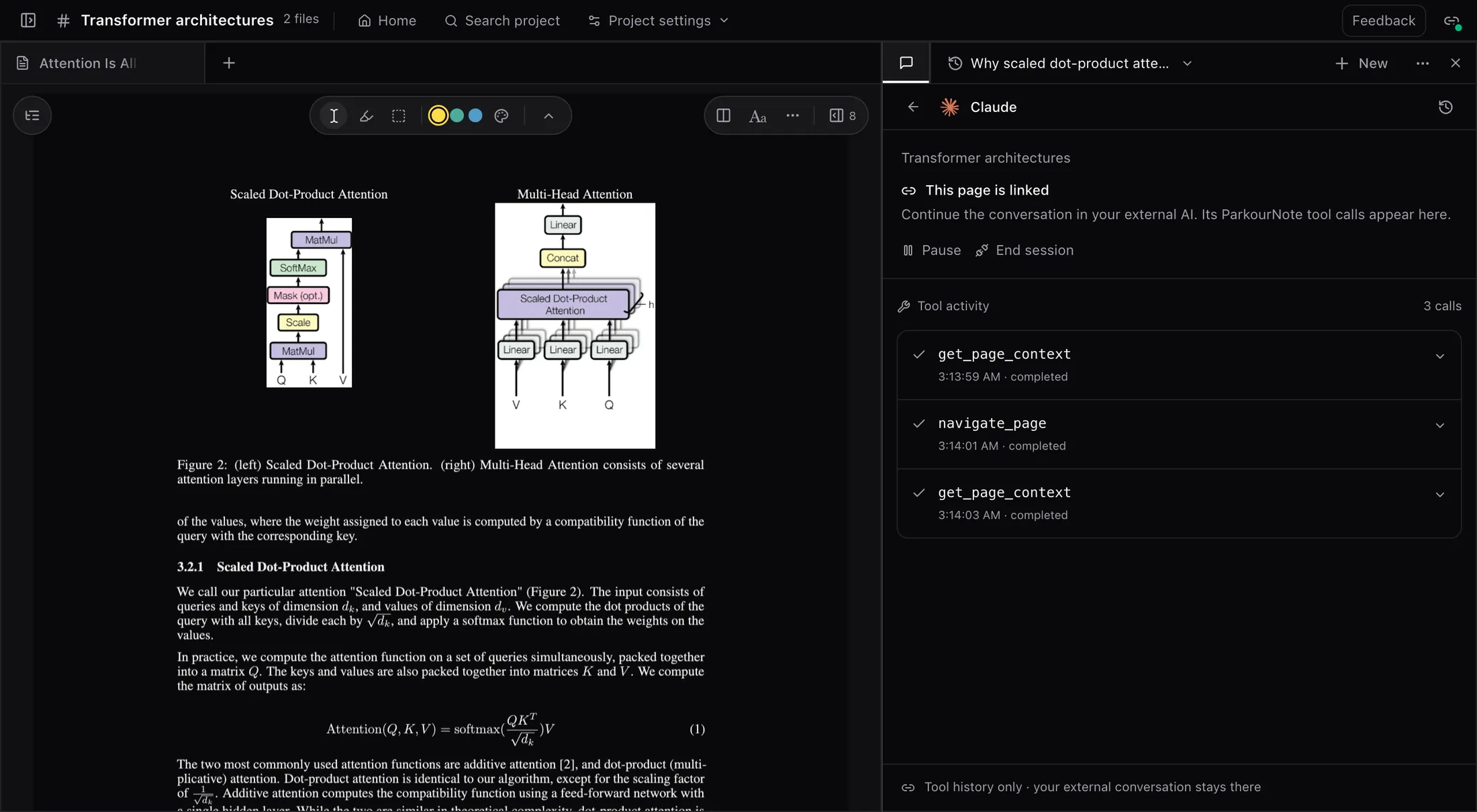
ParkourNote is a remote MCP server. Once connected, a conversation in Claude, Claude Code, ChatGPT or Codex can search and read your library, and follow the page you have open in ParkourNote.
How it works
- The server address is https://note.parkourlabs.io/mcp. Your AI app signs in through your browser with OAuth; no API key or password goes into its settings.
- You approve what it may do: read, organise the library, write notes, and follow a page. Settings → External AI lists every connected app and revokes access in one click.
- To work on the page in front of you, open the chat's link button and copy the one-time instruction into your AI conversation. It works once and expires after five minutes.
- The tools never start transcription, translation, ParkourNote's own chat or anything else that uses your plan's allowance.
Claude (claude.ai and the Claude apps)
- 1
In Claude, open Customize → Connectors.
- 2
Choose + → Add custom connector, name it ParkourNote and paste this URL:
https://note.parkourlabs.io/mcp - 3
Click Connect, then approve access in the ParkourNote tab that opens.
Team and Enterprise workspaces may need an administrator to add the connector.
Claude Code
- 1
Run this once in any terminal:
claude mcp add --transport http --scope user parkournote https://note.parkourlabs.io/mcp - 2
Start Claude Code, type /mcp, choose parkournote and then Authenticate.
- 3
Approve access in the ParkourNote tab that opens.
Codex (CLI, IDE extension and app)
- 1
Add ParkourNote as an MCP server:
codex mcp add parkournote --url https://note.parkourlabs.io/mcp - 2
Sign in:
codex mcp login parkournote - 3
Approve access in the ParkourNote tab that opens.
The Codex CLI, IDE extension and app share one configuration, so you set it up once.
ChatGPT
- 1
In ChatGPT on the web, turn on Settings → Security and login → Developer mode.
- 2
Add an MCP connection and paste this URL:
https://note.parkourlabs.io/mcp - 3
Approve access in the ParkourNote tab that opens.
Availability depends on your ChatGPT account and workspace policy.
What a connected AI can do
| Group | Tools |
|---|---|
| Read | Search the library and notes; read transcribed pages, existing translations and figures; list tags, files, notes and highlights. |
| Organise | Tag papers and rename tags, set a paper's reading status, import an arXiv paper or a public PDF, upload a local PDF through a browser page, export citations as BibTeX, BibLaTeX, RIS or CSL JSON. |
| Notes | Create a note and append to an existing one. |
| Follow a page | Pair with the page you linked, read what is visible and selected there, and turn it to another file, note or page. |
Start in the browser
Make an account on the web; the extension, the phone app and your AI connections all sign in to the same library.