Everything ParkourNote does
The landing page gives an overview. This page is the full list, section by section, with the formats, languages and shortcuts in detail.
Library, Inbox and tags
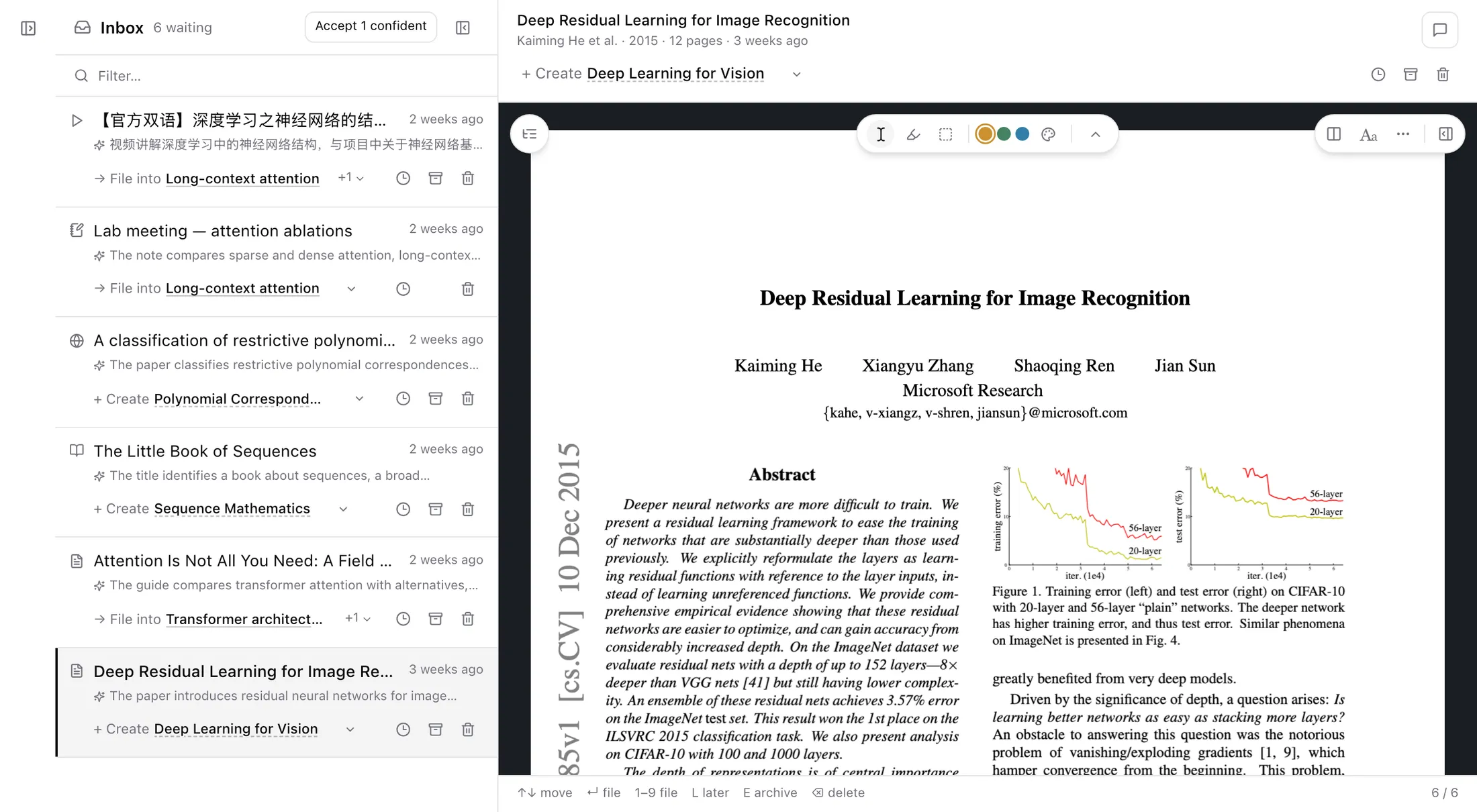
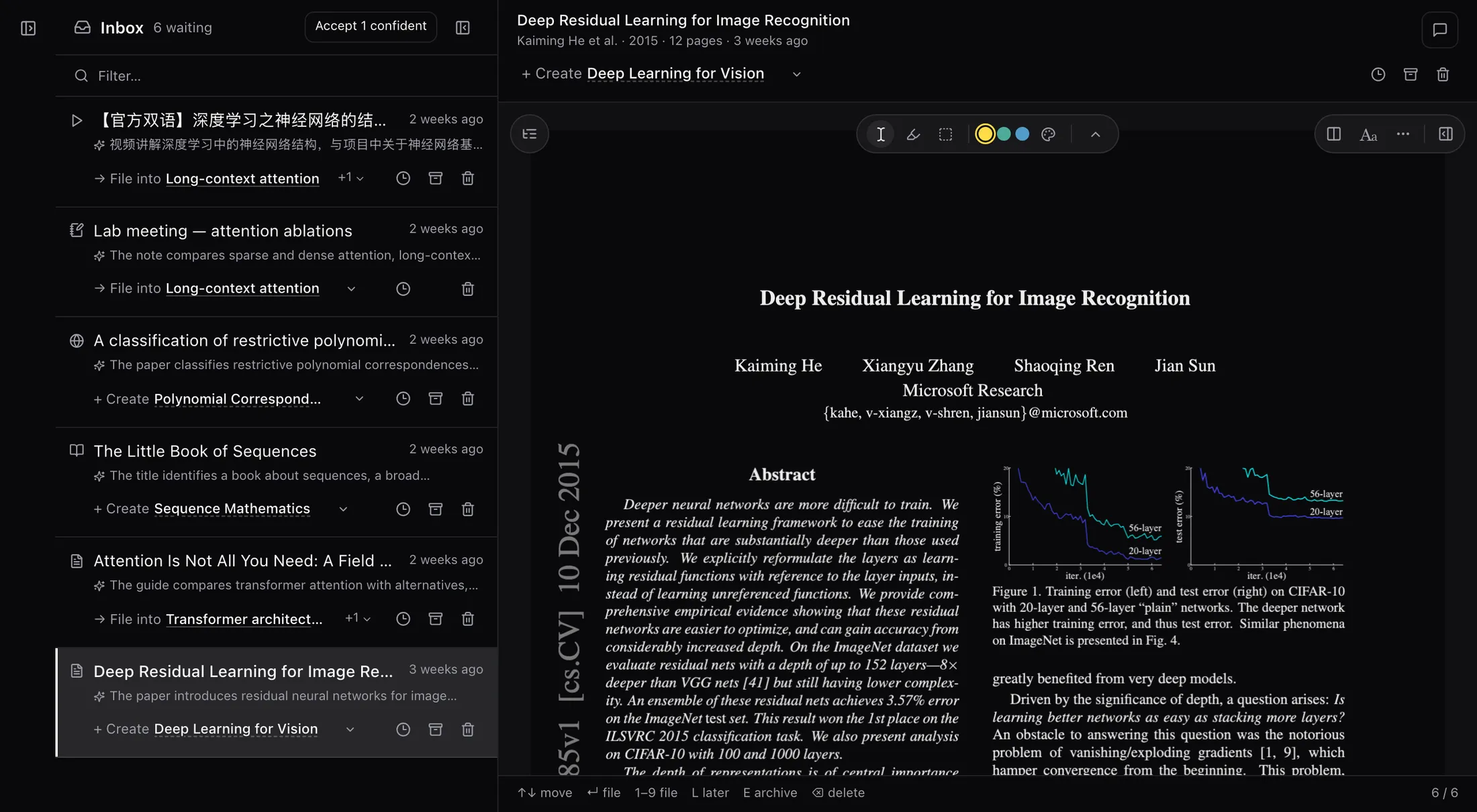
Everything you import goes into one library. The Inbox holds what came in from outside until you have looked at it.
What you can import
| Source | What comes in |
|---|---|
| arXiv | Paste an id or a link. Title, authors, abstract and version come attached; optionally the LaTeX source as an editable document. |
| Upload files up to 1 GB, or give a link. The PDF's own highlights and notes can be imported too. | |
| EPUB and Markdown | Books keep their chapters; Markdown opens as a document. |
| Web pages | Clipped from Chrome as a readable article, with an optional full snapshot. |
| Video | YouTube and Bilibili links (youtu.be and b23.tv too), or an MP4 file. |
| Audio | Recorded in the browser or on the phone, transcribed, with a Summary written for you. |
| Typst and LaTeX | Single files, or a whole source folder as .zip or .tar.gz. |
| Feeds | RSS, Atom and JSON Feed, or a whole OPML file. |
Inbox
- Each new item gets a suggested tag with a one-line reason: one you already use, or a new one when none fits.
- For each item: add the suggested tag or another, keep it in the library without a tag, snooze it (tomorrow morning, Friday evening or next week), archive it or delete it. Once handled, it leaves the Inbox.
- Keyboard triage: ↑↓ or j/k to move, ↵ to accept the suggestion, L to snooze, E to archive, ⌫ to delete. Accept every confident suggestion at once.
- Suggestions are only suggestions: nothing is tagged until you accept. Notes you write never go to the Inbox.
Tags
- Tags nest with slashes, like AI/Papers/CNN, and a parent tag includes the documents of its children.
- A document can have several tags, or none. Having no tag is normal; it stays in All documents.
- The sidebar shows the tag tree with counts. Open a tag as a Workspace, and new notes written there get the tag.
- Deleting a tag never deletes its documents.
- Identical files are recognised across the library by their content.
Tabs and Workspaces
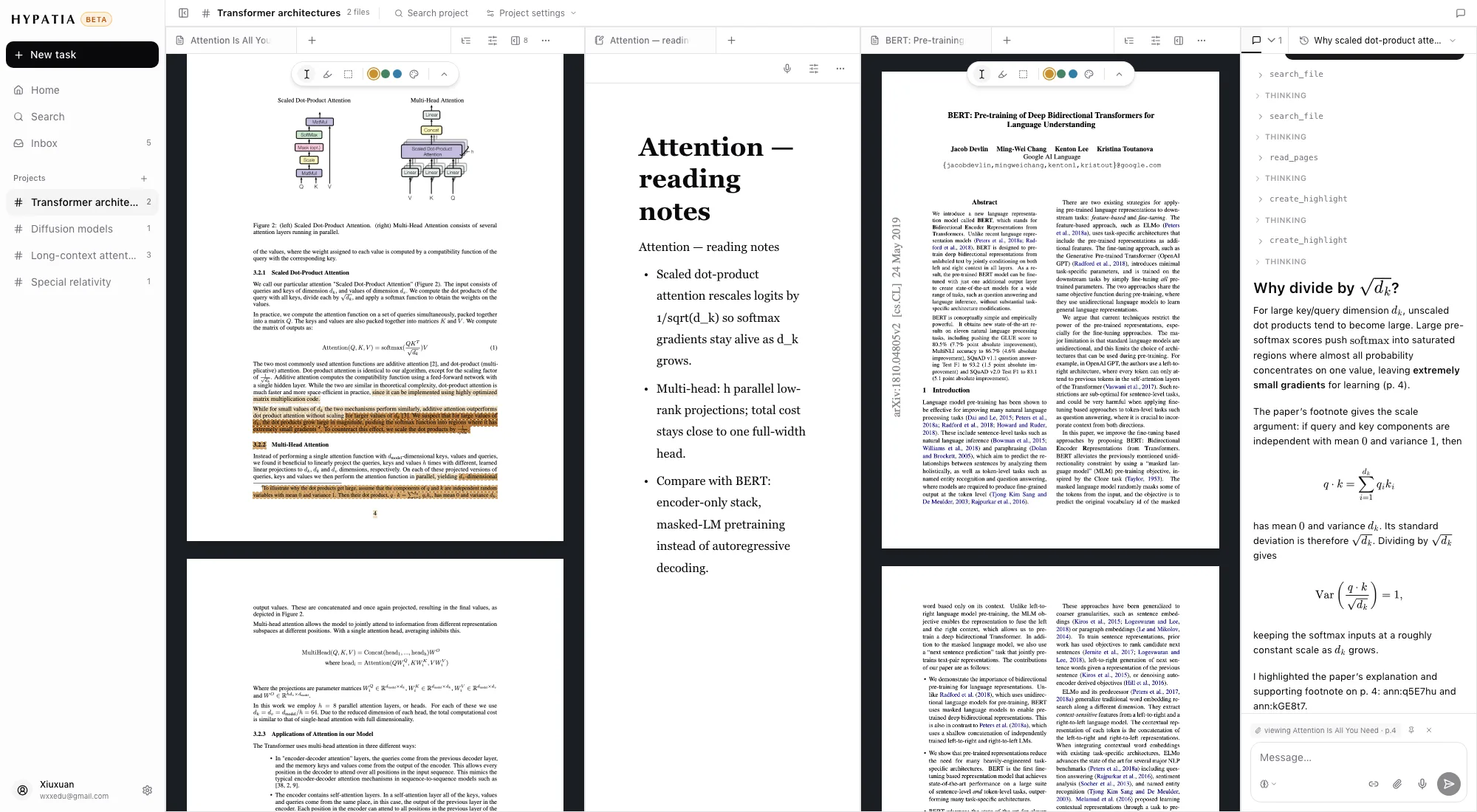
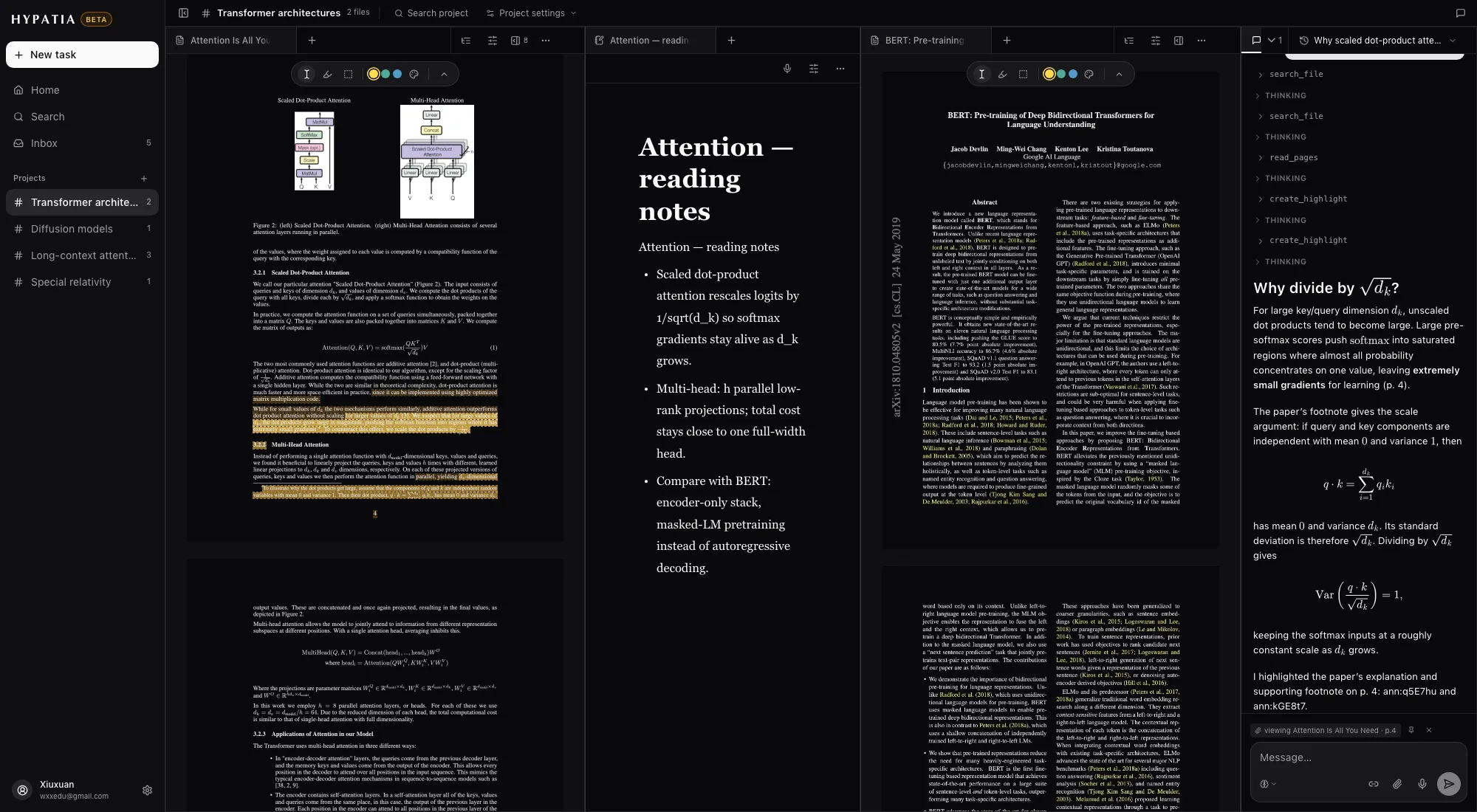
What you open becomes a tab. A Workspace is a saved set of tabs with its own chat.
- Readers, notes and feeds open as tiles, with the chat beside them. Split them side by side, stack them as tabs, and drag them around.
- Papers you open go into this device's Tabs. Save as Workspace (⌘S) keeps them, with their chat, on every device, and the Workspace names itself.
- Opening a paper that is already open somewhere takes you to it. Each Workspace keeps its own page and view for every paper in it.
- The sidebar lists pinned and recent Workspaces. Ones unused for 14 days are archived automatically and can be restored with their tabs and chats.
- Add a tab from the + menu: a new note, a Typst or LaTeX document, an arXiv import, a file, something from the library, or a feed.
- ⌘O opens a quick switcher for files, notes, feeds and Workspaces; type > for sections of the open file, : to filter by kind.
Reader
PDFs, EPUBs, web pages and documents open in the same reader.
Transcription
- Choose the pages to transcribe (for example 1-3,5) or whole chapters from the contents. Pages already transcribed are not transcribed again.
- The result is an editable document of blocks — headings, paragraphs, formulas, tables and figures — each linked back to its place on the page.
- Long books split into one document per chapter.
- An outline built from the document gives parts and chapters to the contents dock, which steers both the PDF and the document.
Translation
| Languages | Simplified Chinese, Traditional Chinese, English, Japanese, Korean, French, German, Spanish, Russian, Brazilian Portuguese, Indonesian. |
| Scope | A selection, a section, or the whole document, translated block by block. |
| Layouts | Under each source block, or in a second column beside the original with resizable columns; on the PDF pages, in the document, or both. |
| Kept intact | Formulas, figures and tables. Highlighting a source block can highlight its translation too. |
Reading tools
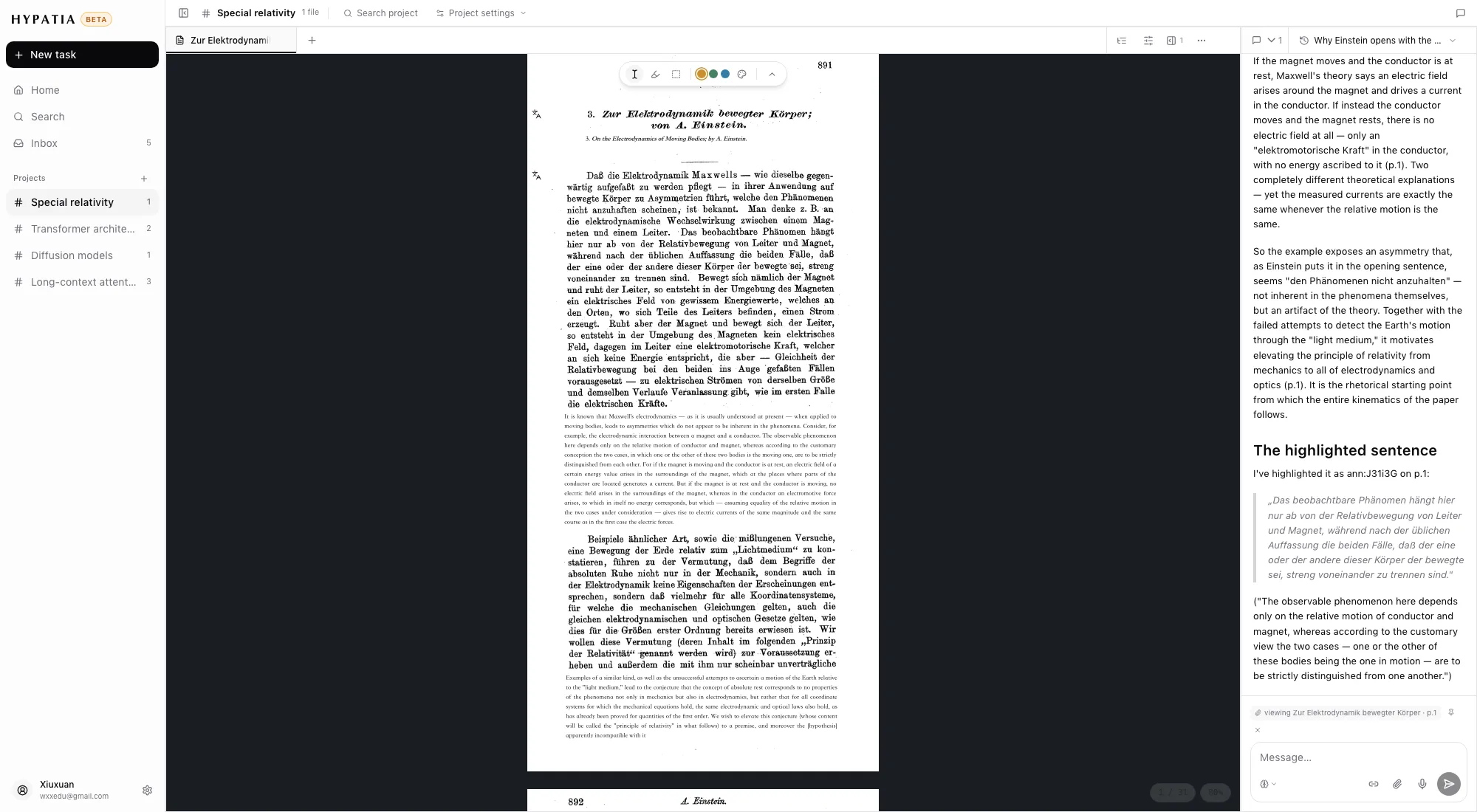
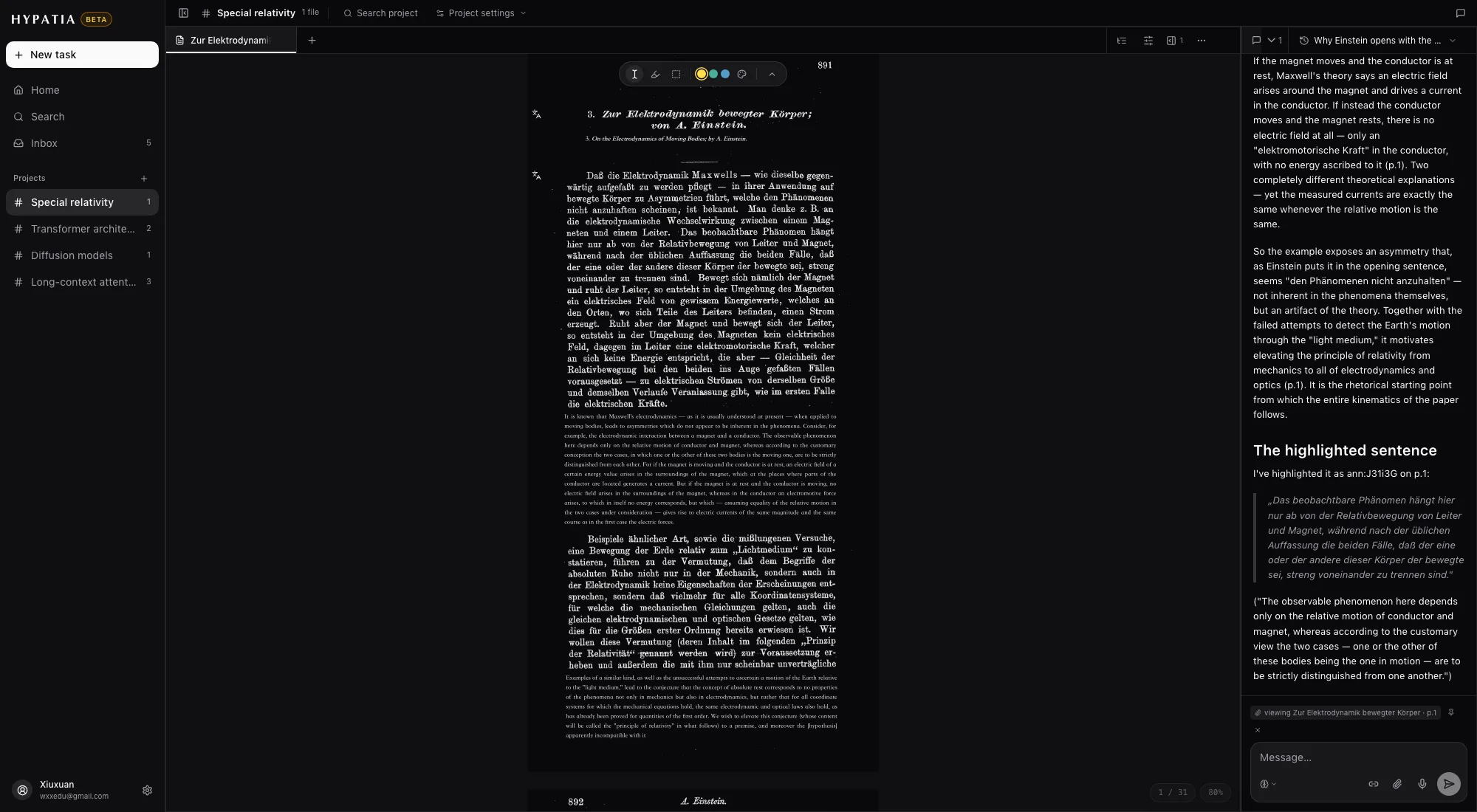
- Select text, highlight in several colours, or box a region to capture a figure or formula; a boxed formula comes back as editable maths.
- Hover a link or citation on a PDF to see a magnified preview of where it goes. Jump there and back (⌥←), or find the cited paper and open it beside the one you're reading.
- Select a word for a dictionary card. A default set is built in; upload MDX/MDD dictionaries of your own, shown with their original styling.
- ⌘F finds text in the document. Zoom with ⌘+ and ⌘−, or fit to width.
- PDF page colours can be kept as they are, dimmed, or blended with the theme.
- Text size, line spacing, paragraph spacing and page width are adjustable for documents.
Chat
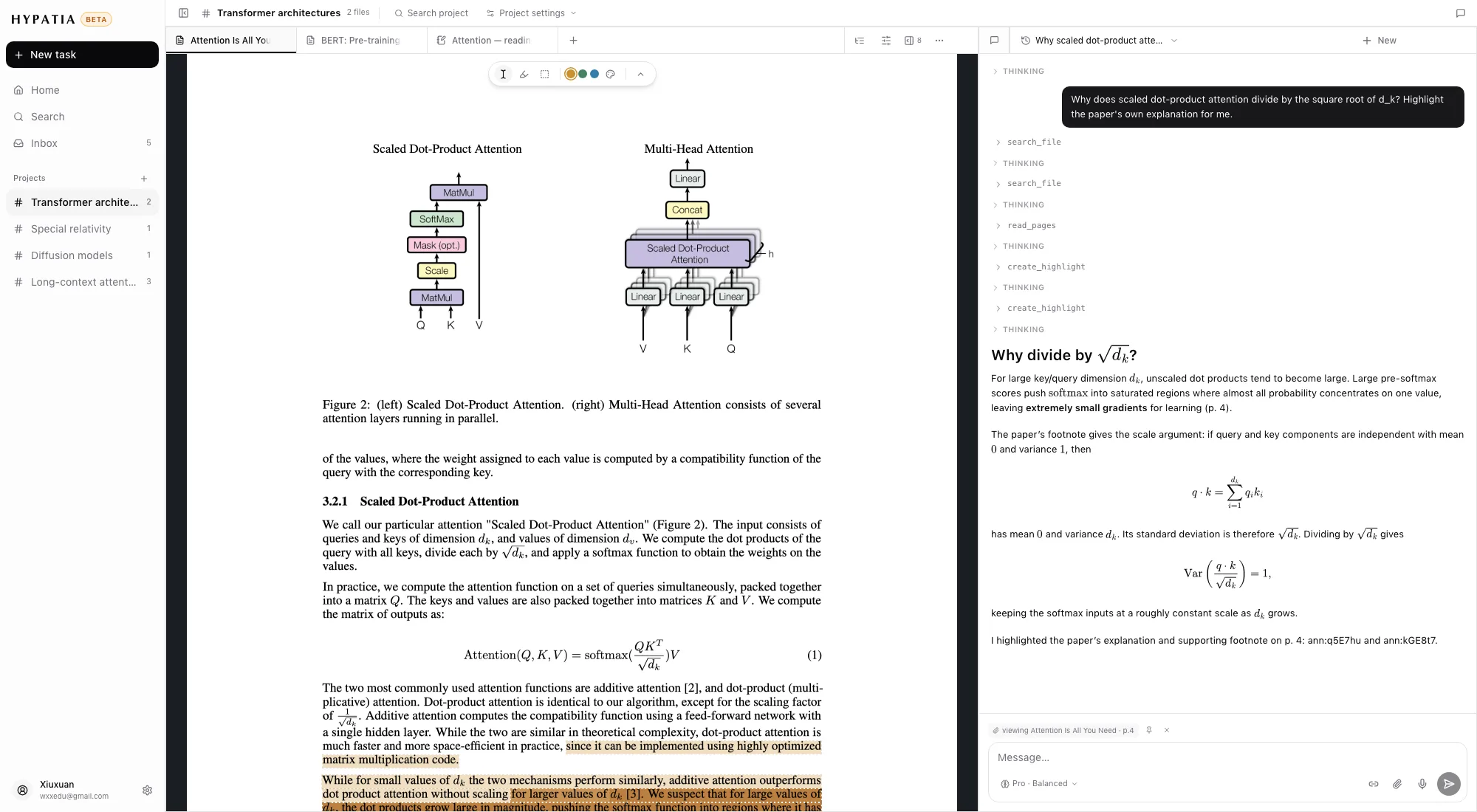
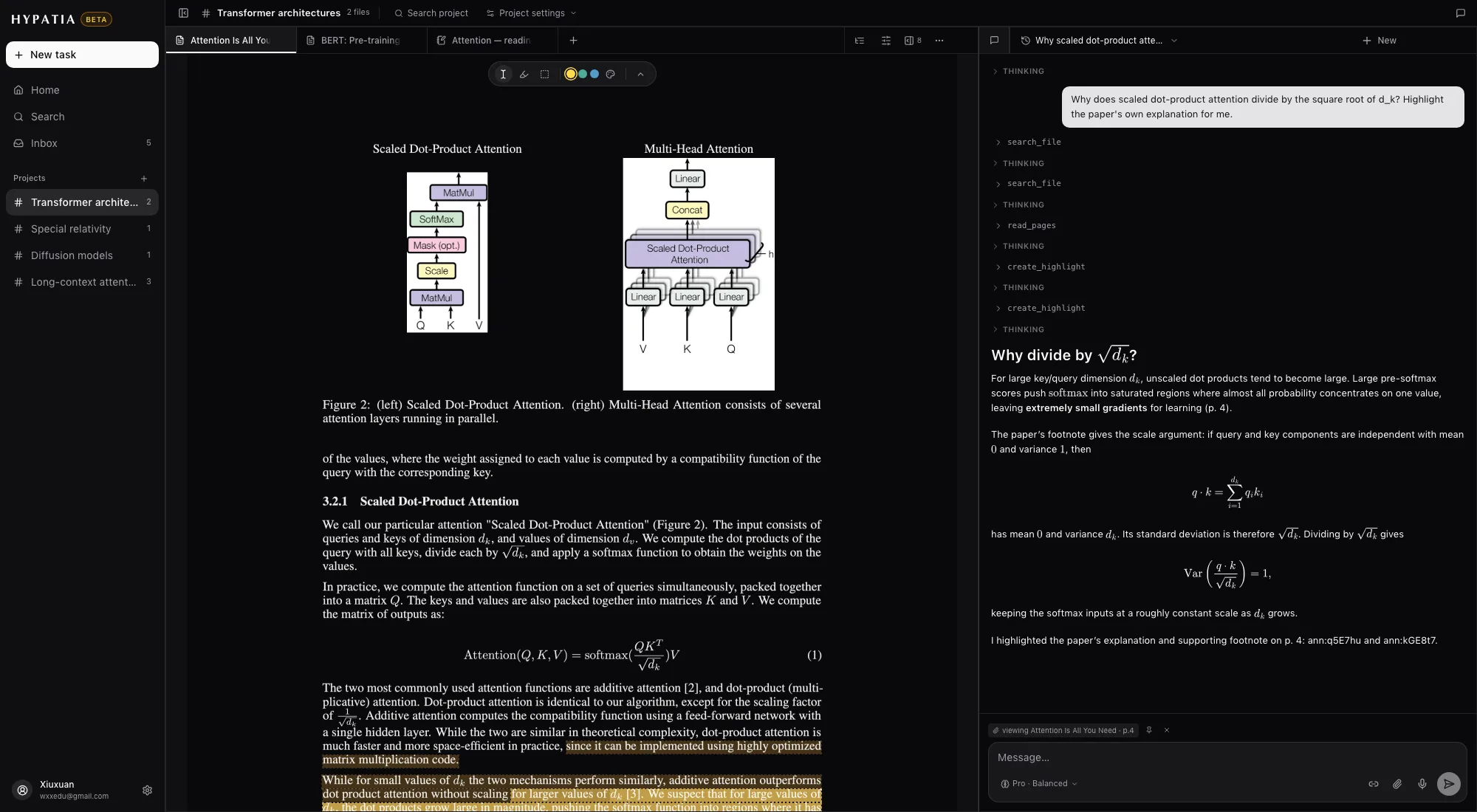
A chat in every Workspace, aware of what you're reading.
What it sees
- Every tab open in the Workspace, starting with the one in front: the pages you're looking at, the passages and figures you attach, the note in focus, and the video frame when you ask about a video.
- Screenshots you paste and questions you dictate.
What it can do
- Read other pages and figures, and search the file, the library and your notes.
- Search the web and arXiv, import a source, and open a related paper in the reader.
- Create highlights on the page and write or update notes; edit Typst and LaTeX documents.
- Insert, update or remove citations and look up bibliographic data.
- Tag or archive files, open papers as tabs, and save the current Tabs as a Workspace.
Models and threads
- Flash on every plan, and Pro on the plans that include it. Choose how long it thinks: fast, balanced or deep.
- Answers cite pages and highlights you can click back to; formulas and diagrams render in the reply.
- A conversation belongs to the Workspace, or this device's Tabs, it was started in. Recent conversations are listed with their Workspace; opening one brings back its tabs too. ⌘J shows or hides the chat.
Notes and documents
- Notes are block documents with headings, lists, maths, images, links and citations. ⌥⌘N makes a new one from anywhere, with no need to choose where it goes.
- The first line is the title; give a note an emoji or a thumbnail, and attach images (PNG, JPEG, WebP, GIF).
- Notes sync live between the browser, the phone and other open tabs.
- Select text and press ⌘K to rewrite it with AI, or press Space (or ⌘⇧K) and say the change.
- Export as Markdown with maths kept, as rich text for Word, Pages or Notion, or as a source archive — with translations if you want them.
Typst and LaTeX
- Start from a template, upload a .typ or .tex file or a whole source folder, or import an arXiv paper's LaTeX source.
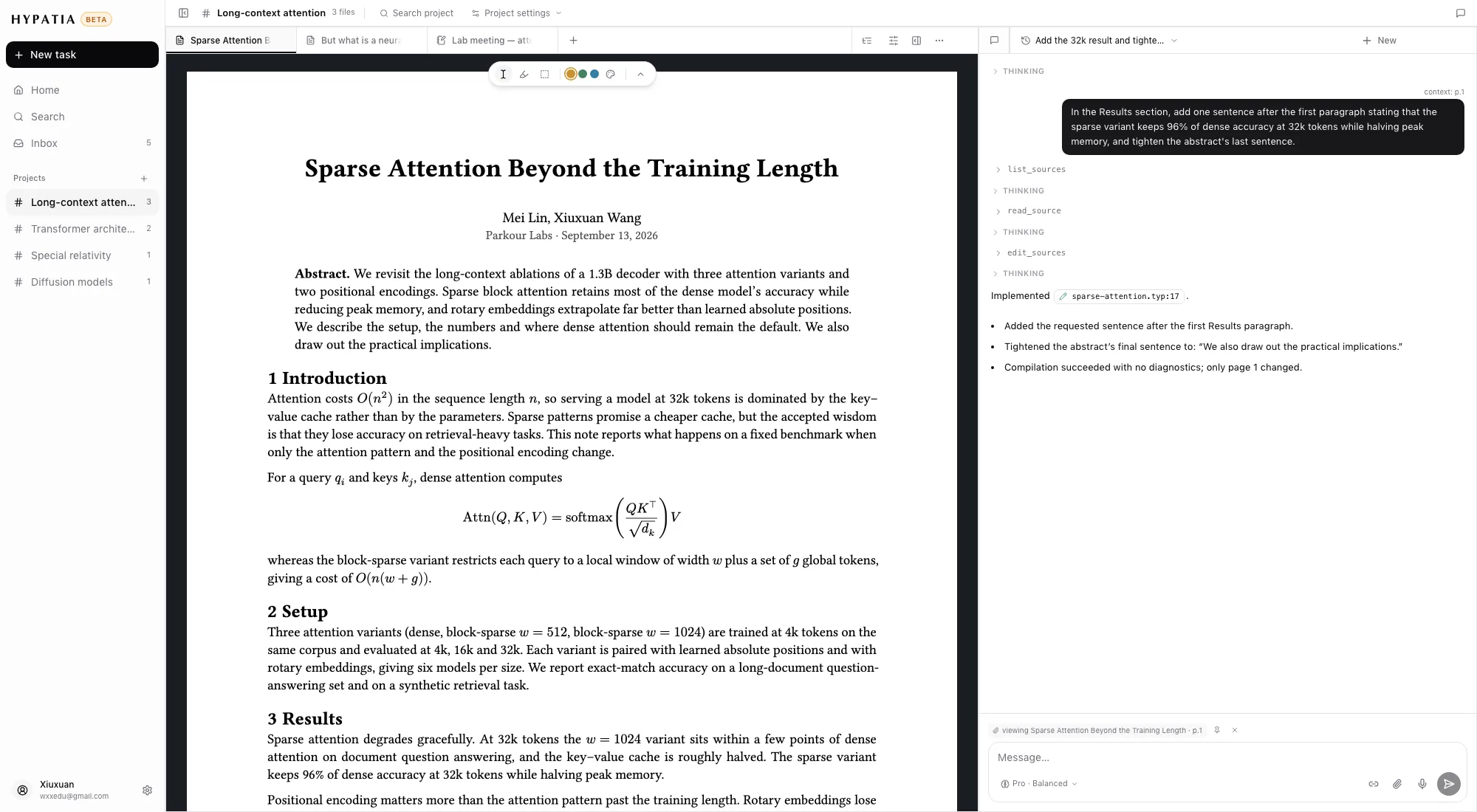
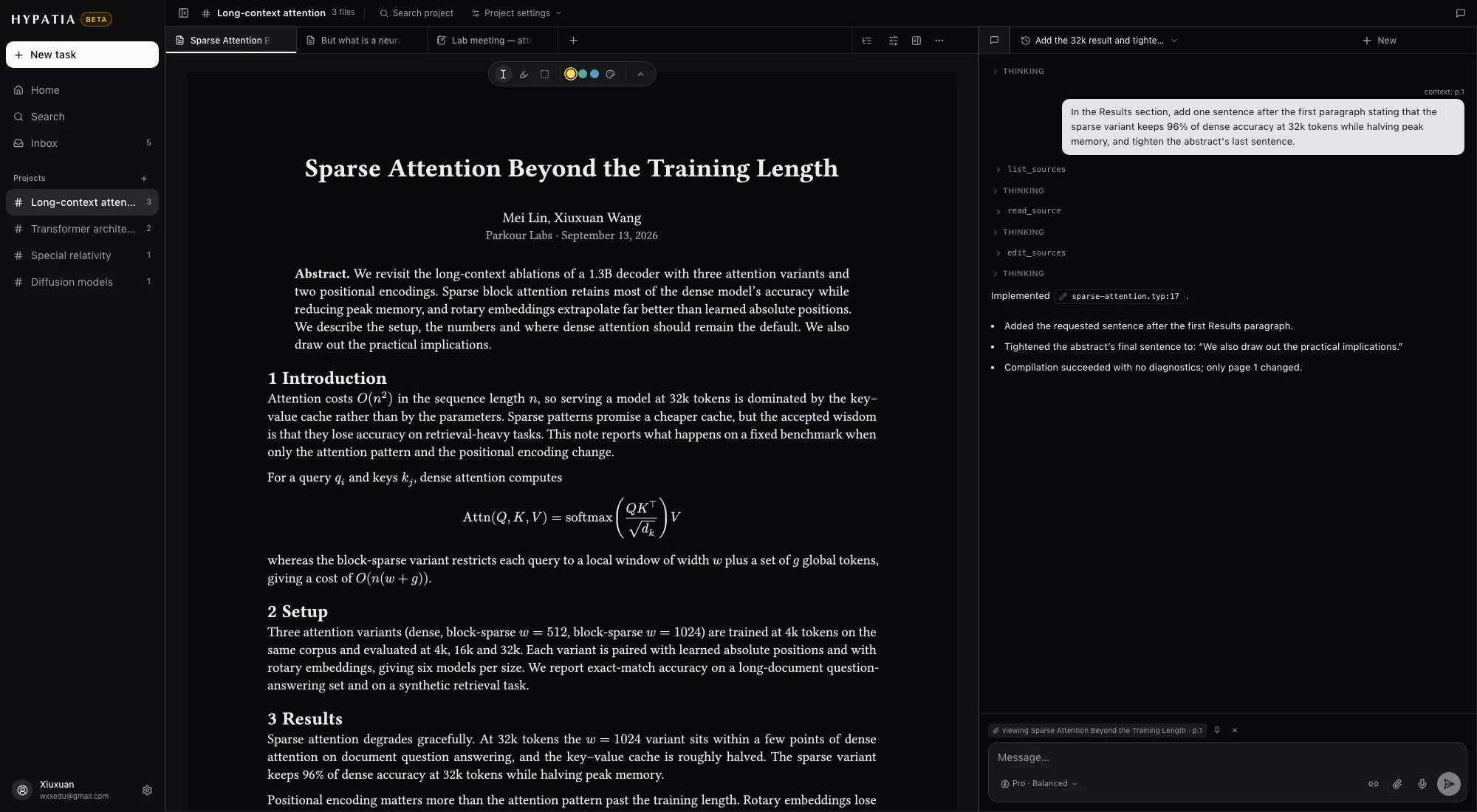
- The compiled pages open in the reader with highlights, contents and chat like any paper.
- Click a line on the page to open the source at that line; edit the source and the page recompiles.
- The chat edits the source directly. Each change is a chip you can open for the diff, show on the page, or revert.
- Name versions and download the PDF.
Video and recordings
Video notes
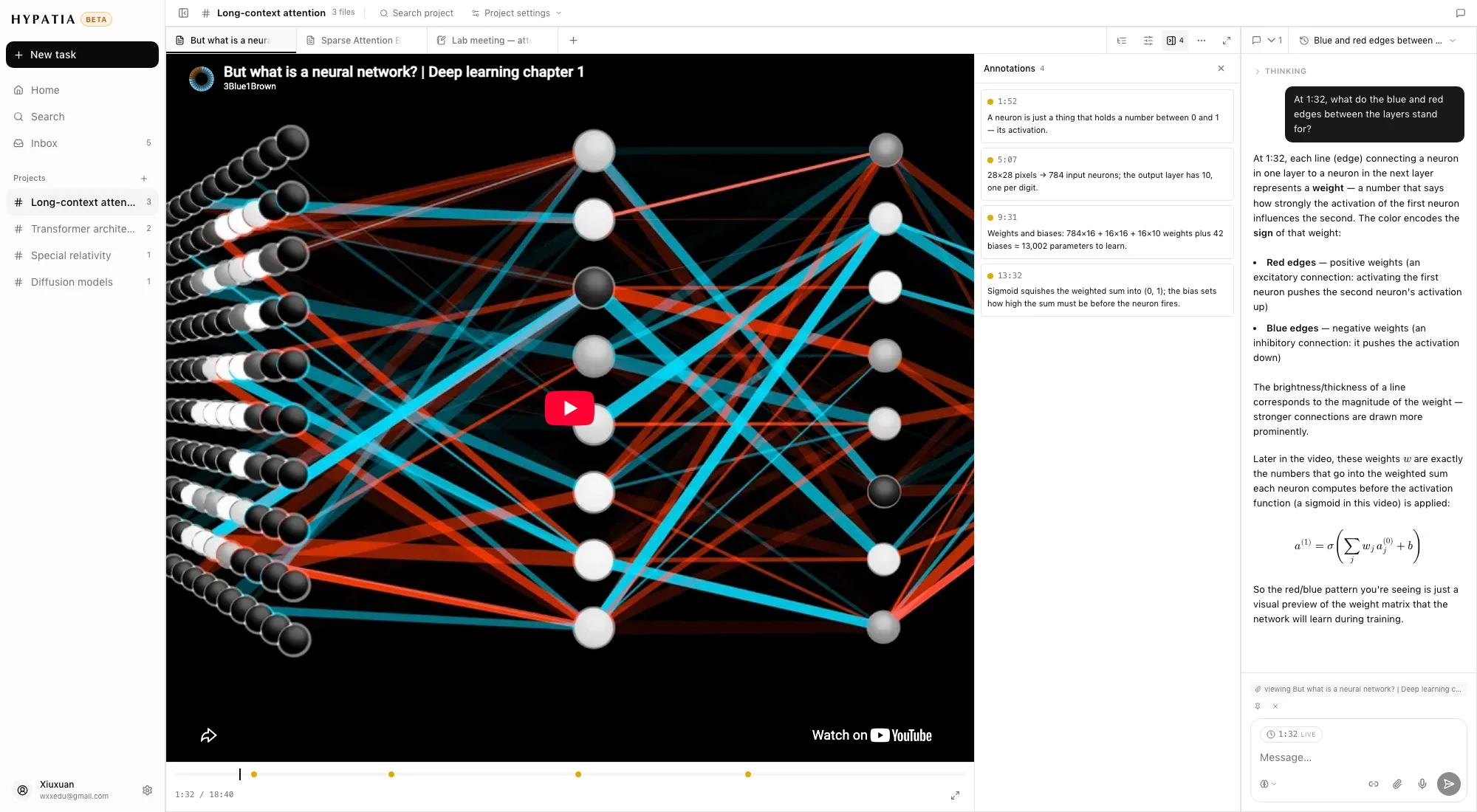
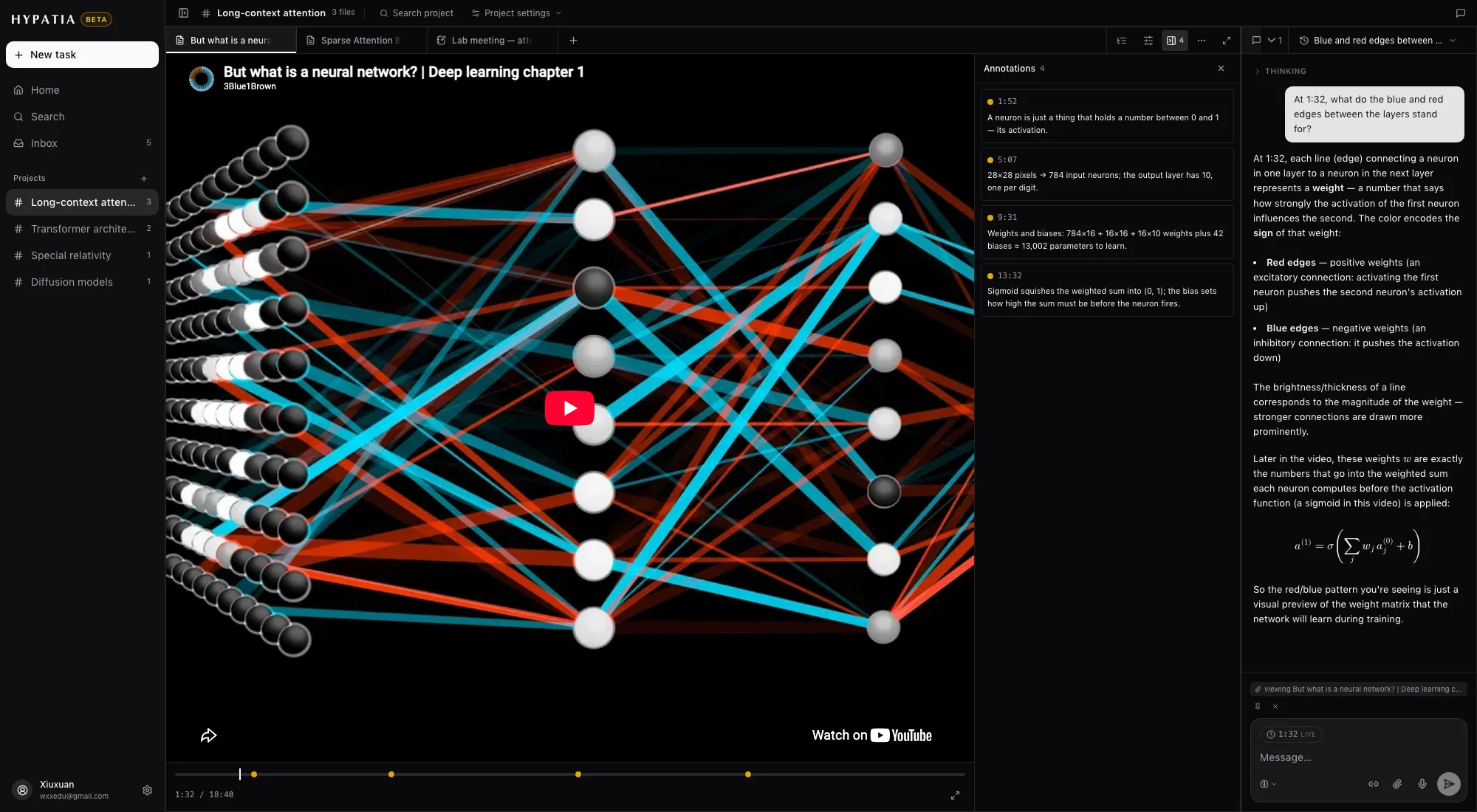
- YouTube, Bilibili and MP4 videos open as tabs beside your papers.
- Notes remember the time you were at when you typed them, with a frame from the player; the time in the margin seeks back to that moment.
- The chat knows the time and can see the frame.
Recordings
- Record in the browser or on the phone; the recording uploads as you go, and you can pause and continue.
- When you stop, the recording opens as one document: a Summary written for you above the full Transcript.
- A note written beside a recording, a video, a PDF or another note shows in its margin where you were, and a click goes back there.
- On iPhone, recording continues with the phone locked, with controls on the Lock Screen.
Feeds
- Subscribe to RSS, Atom and JSON feeds; entries arrive newest first with excerpts, and move with j/k.
- Read the full text in the feed tile. Convert an entry to a document when you want to highlight, translate or ask about it.
- Tag a feed like any document; unsubscribe from the Inbox.
- Import and export OPML.
Citations and export
| Citation styles | APA 7, MLA 9, Chicago (author–date), Harvard, IEEE. |
| From a selection | Copy an in-text citation, a reference entry, or the quote with its citation. |
| Metadata | Edit a source's details, or look them up by DOI, ISBN or title. |
| Bibliography | BibTeX, BibLaTeX, RIS, CSL JSON. |
| Documents | Markdown, rich text, source archive, and a Pandoc citation package. |
Search and shortcuts
| Shortcut | Action |
|---|---|
| ⌘O | Open anything: files, notes, feeds, Workspaces |
| ⌘⇧F | Search text, highlights and notes across the library |
| ⌘F | Find in the open document |
| ⌘J | Show or hide the chat |
| ⌥⌘N | New note, handwriting notebook, Typst or LaTeX document (N works too, outside a text field) |
| ⌘S | Save the current Tabs as a Workspace |
| ⌘K | Rewrite the selection with AI |
| ⌘⇧K | Say an edit to the selection |
| ⌥← | Back after following a link in a PDF |
| ⌘⇧M | Send feedback with a marked-up screenshot |
Search works in Chinese, Japanese and Korean as well as in languages written with spaces.
Appearance and languages
- Themes: Light, Paper, Sepia, Dusk and Dark, or follow the system. Documents can use a theme of their own.
- Separate text sizes for the interface, documents and chat.
- Interface languages: English, Simplified and Traditional Chinese, Japanese, Korean, Spanish, French, German, Brazilian Portuguese, Russian and Indonesian, in the app, the extension and this site.
Account, feedback and privacy
- Sign in with email and password, Apple or Google. Deleting your account deletes your library.
- Your data is stored on Amazon Web Services in Tokyo. The privacy policy and the list of subprocessors say who processes what.
- Connected AI apps and the extension are listed in Settings, where each can be revoked.
- Press ⌘⇧M to report a bug, an idea or a question on a frozen, marked-up screenshot, and follow it from received to fixed.
Try it on a paper you're reading
Make an account, paste an arXiv id or a link, and open it.